Modifier Group
A Text Modifier Group combines a Range and a set of Properties.- Properties determine what changes, such as position, rotation, scale, opacity, or follow path.
- The Range determines which characters, words, or lines are affected.
Adding a Modifier Group
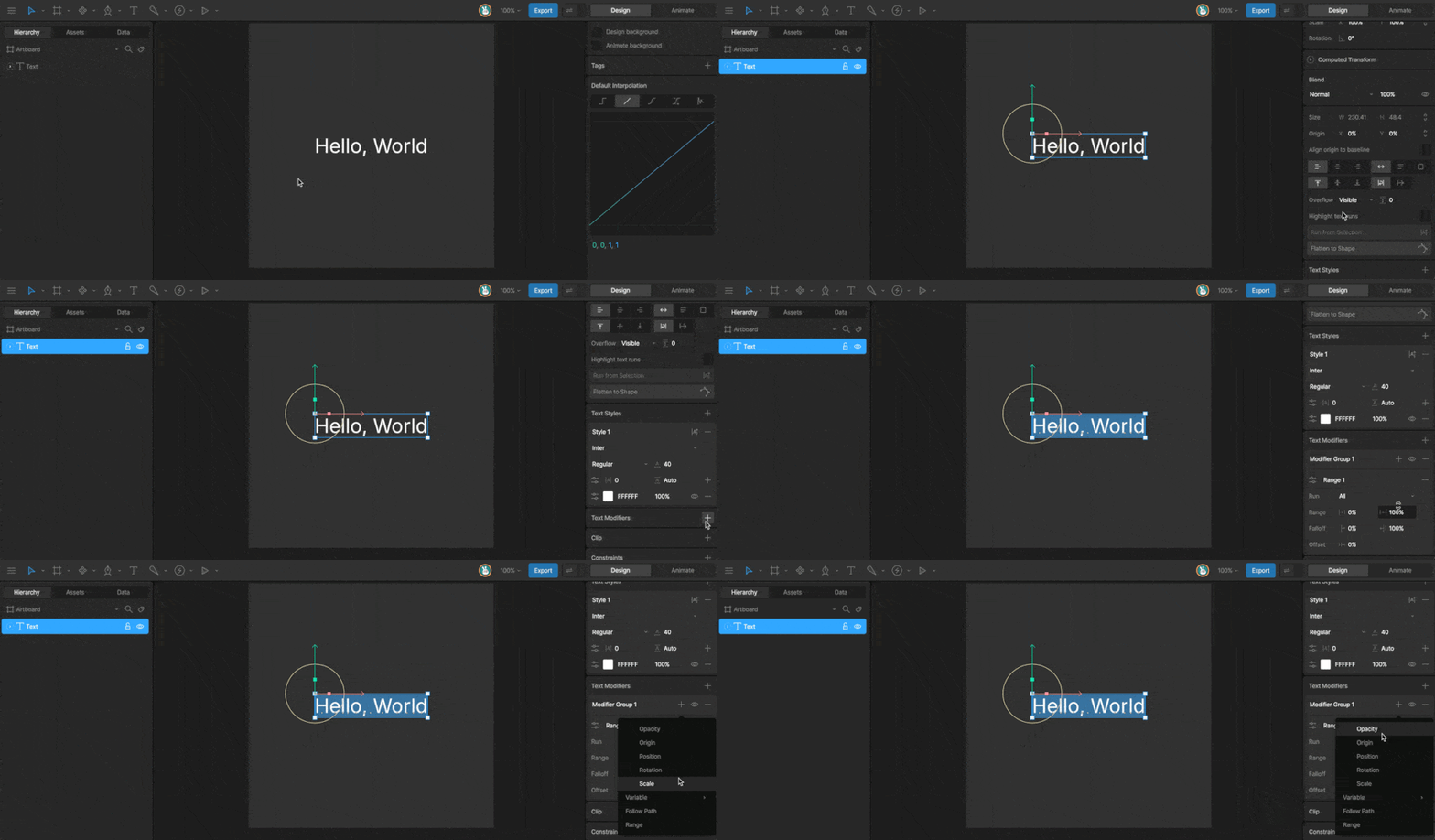
Select a text object, then click the+ button in the Text Modifier panel.
Properties
Properties determine how the text is modified. Each modifier group can modify one or more of the following properties:- Position - Move text along the X and Y axes.
- Rotation - Rotate text around its origin.
- Scale - Change the size of the text.
- Origin - Adjust the pivot point used for rotation and scale.
- Opacity - Change the transparency of the text.
- Follow Path - Align text to a path and control how glyphs follow its direction.
- Variables - Adjust variable font axes such as weight or width. Requires a variable font that supports the selected axis.
Adding a Property
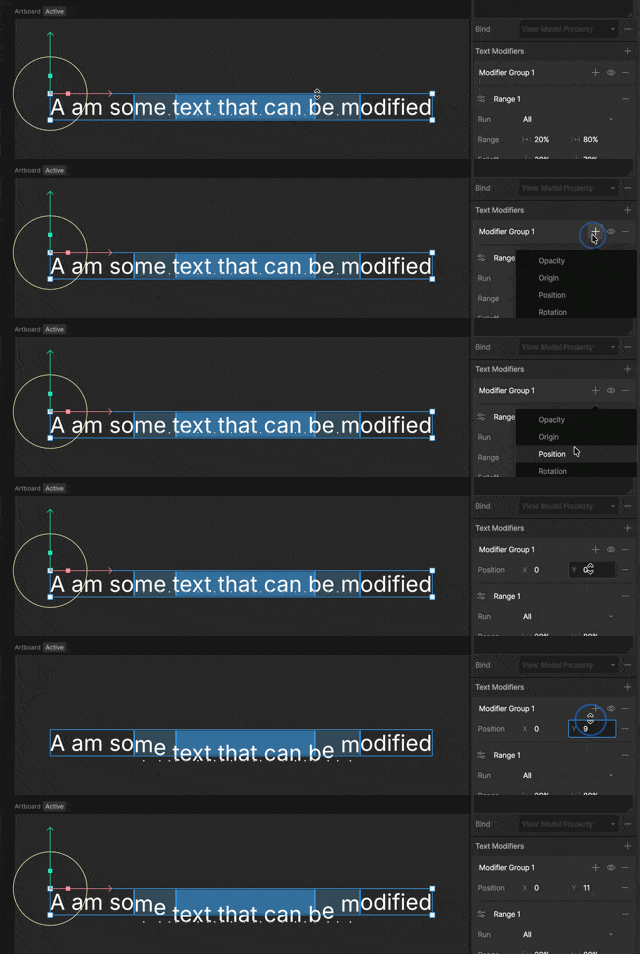
Select a text object, then click the+ button in the Modifier Group. Each property has its own settings, which can be adjusted and animated.
Opacity
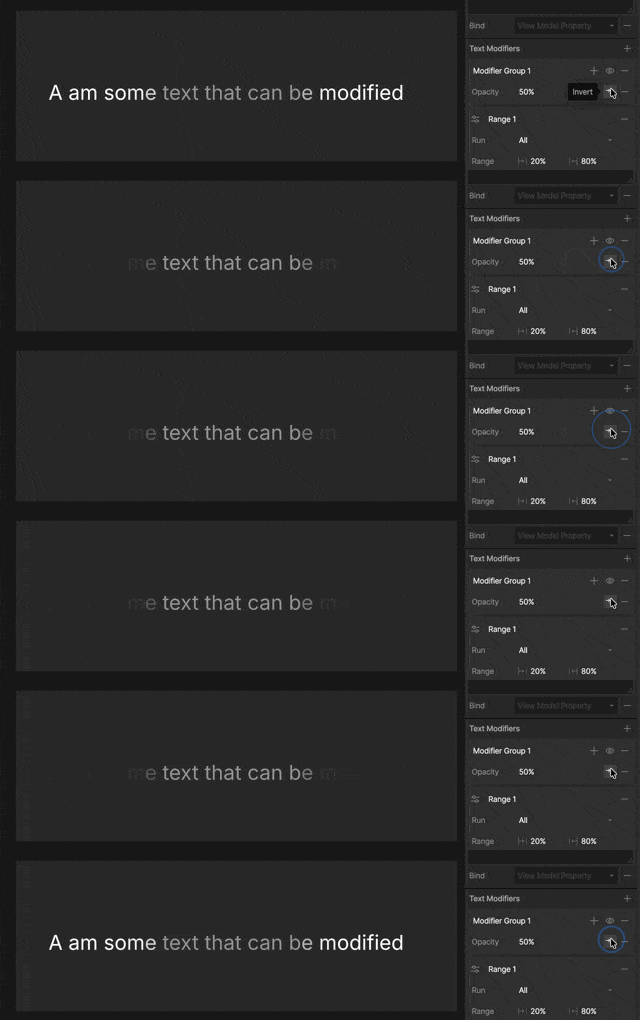
The Opacity value controls the opacity of text within the modifier group’s range. The Invert option controls the opacity of text outside the range:- Disabled: Text outside the range is fully transparent (0% opacity).
- Enabled: Text outside the range is fully visible (100% opacity).
Follow Path
To make non-text objects follow a path, use the Follow Path Constraint instead.
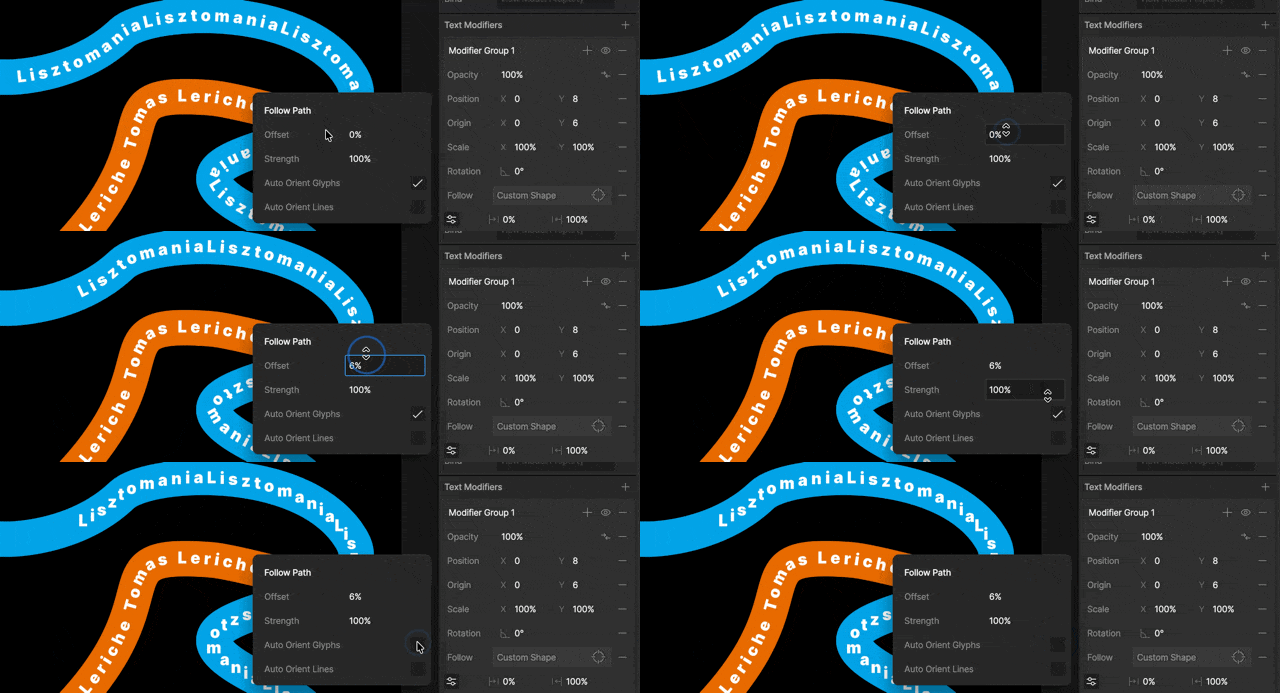
- Follow - The path to follow.
- Trim Start and End - Defines where text begins and stops following the path. Text outside the trimmed section continues from the nearest trim point in the direction the path is facing.
- Offset - Where along the path to start.
- Strength - Controls how strongly the text follows the path. At 0%, text stays in its original position. At 100%, text follows the path completely. Animate Strength to transition text onto or off of a path.
- Auto Orient Glyphs - Make the rotation of the glyph follow the path.
- Auto Orient Lines - Rotates each line to follow the direction of the path.
Range
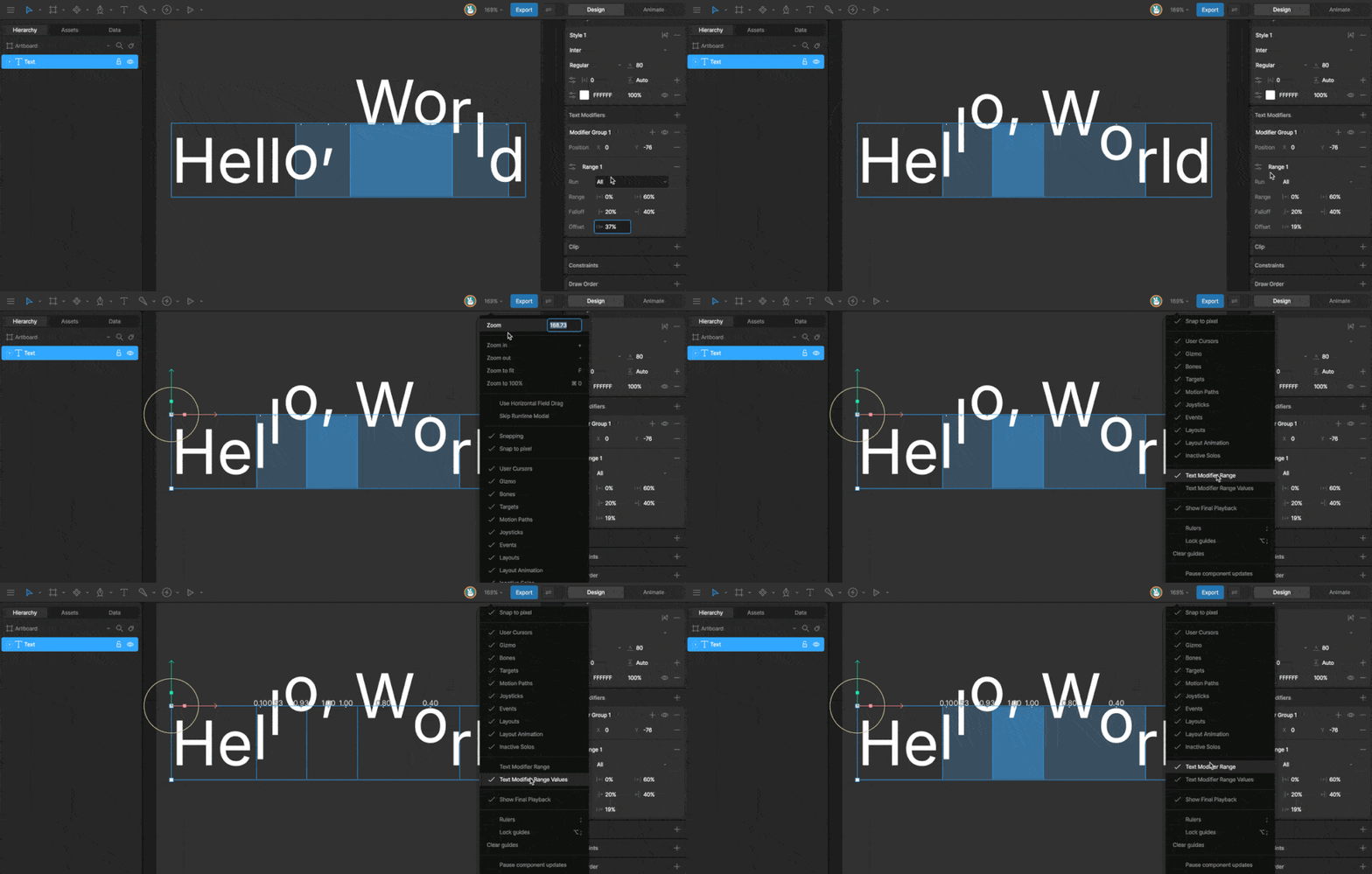
The range can be defined as a percentage of the text length or as an index value. Ranges can be applied by character, word, or line. Open the Range Options fly-out to configure the range behavior. You can see a visual representation of the range via a shaded area on the stage. You can configure the stage visual options in the visibility menu on the toolbar.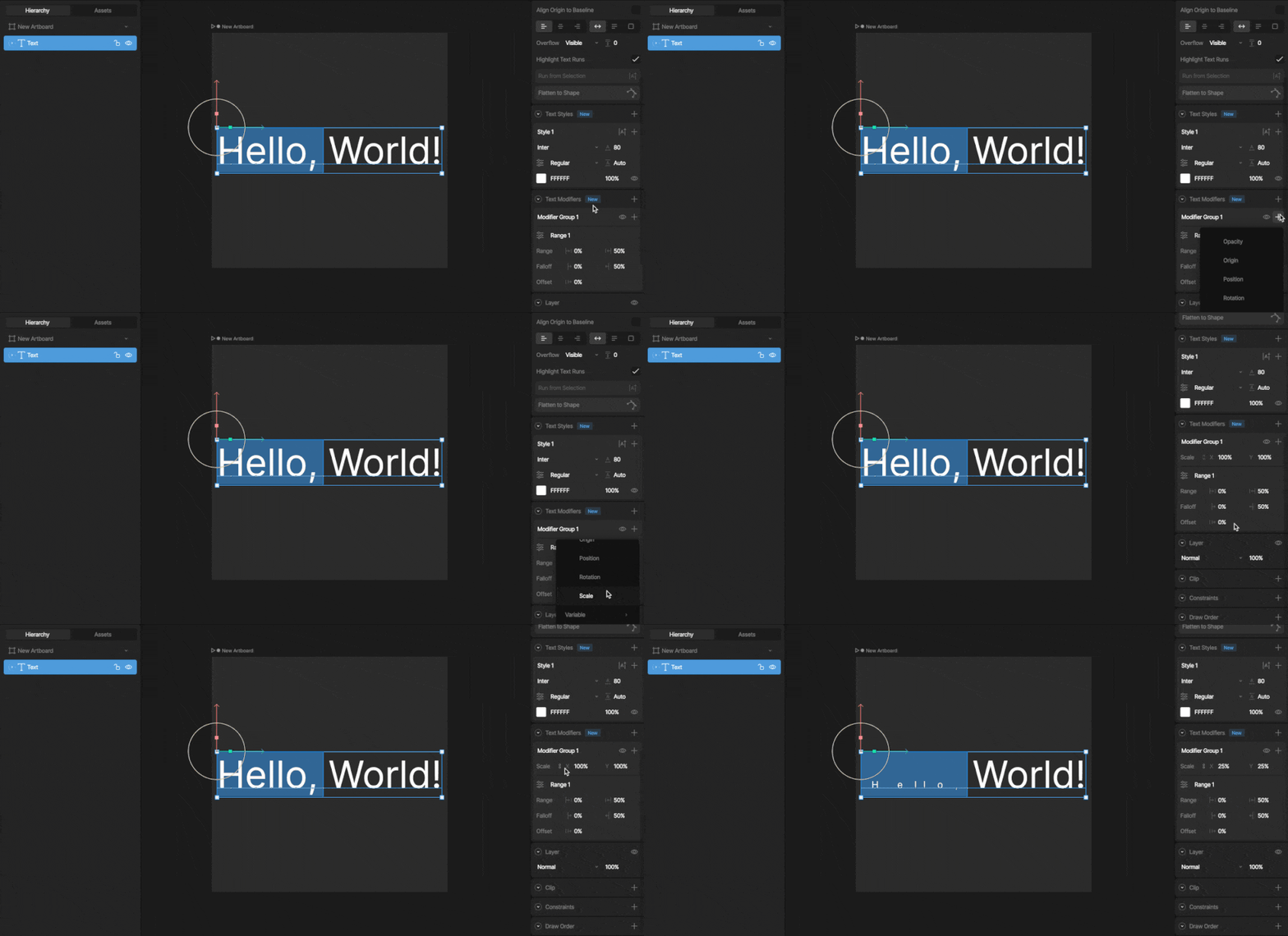
Run
Determines whether the modifier is applied to the entire text object or only to a specific text run. When a text object contains multiple text runs, modifiers can be limited to a single run instead of affecting all text.Falloff
Use the falloff values to add interpolation to the applied modifier properties. For example, a modifier group that scales glyphs to 200% with a range from 0% to 100% and a falloff of 25% to 75% will gradually scale glyphs up from 100% to 200% over the first quarter of the text, and back down again over the last quarter of the text. The falloff can be visualized via the darker shading on the stage guide.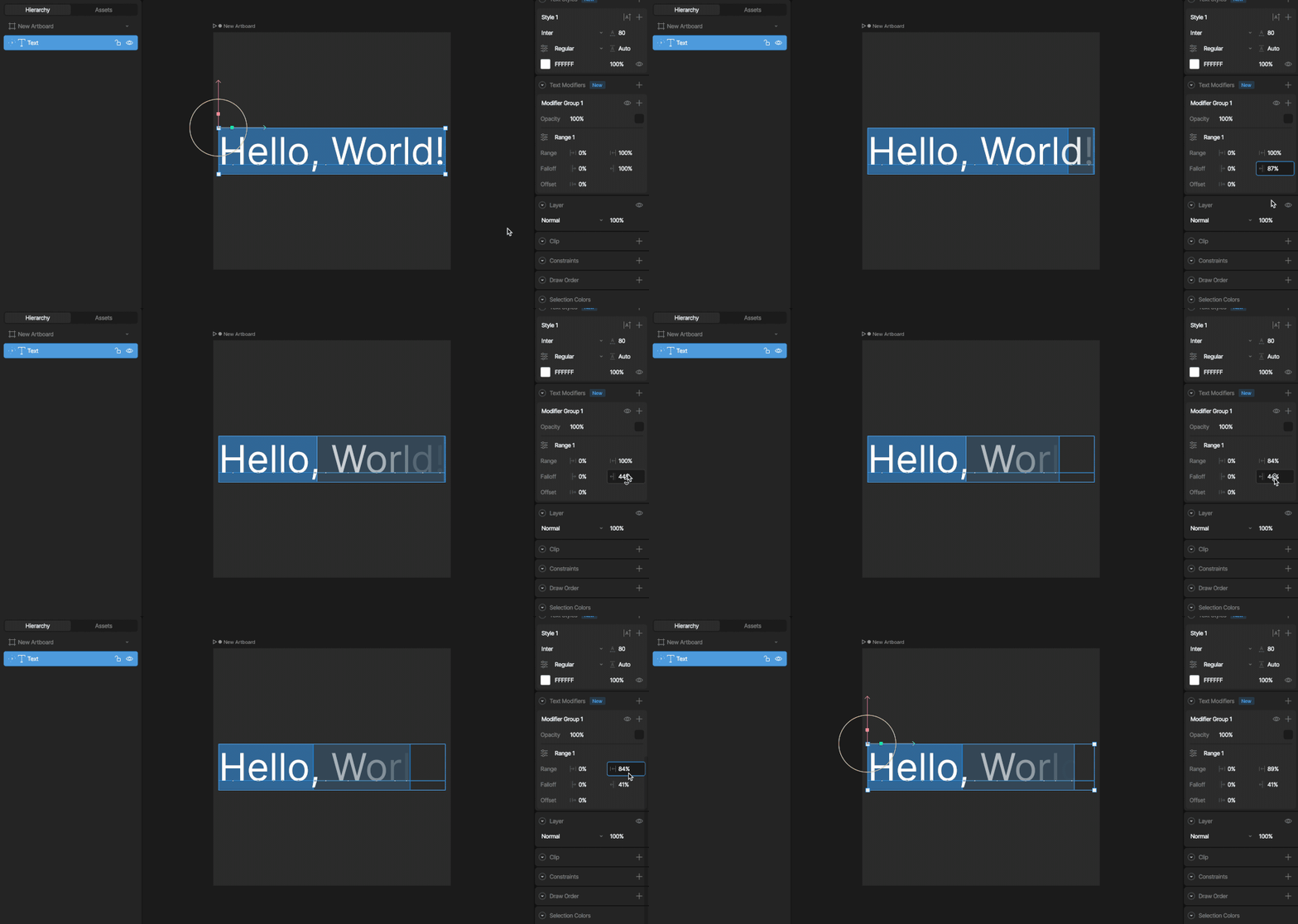
Offset
Use Offset to move the range along the text. Try animating the offset value to create wipe effects along a text value. For example, a scale modifier can animate the offset to make individual glyphs scale up and back down again.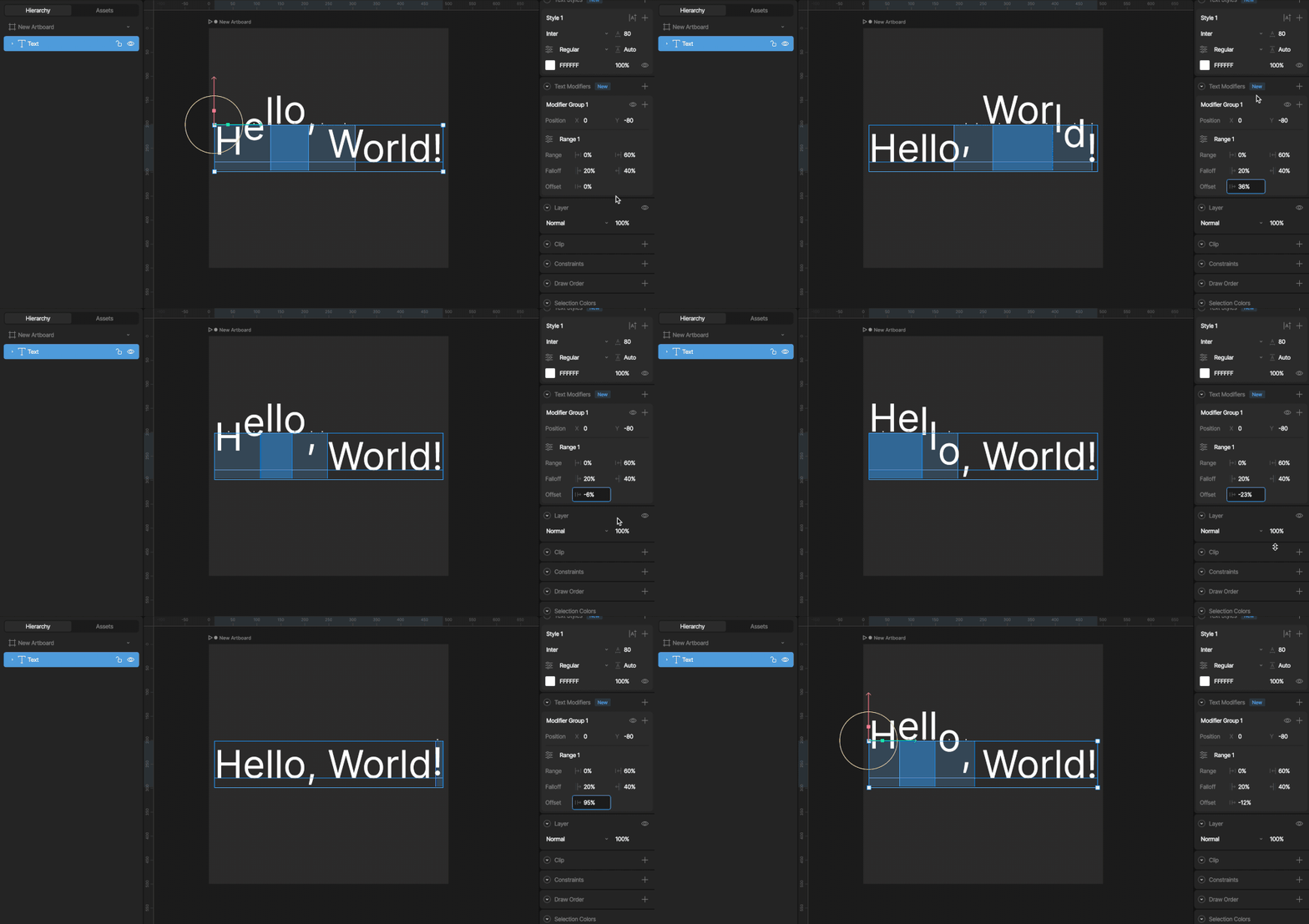
Range Options
Additional range options can be found in the fly-out alongside the range name for more fine-grained control over the range selection behavior. Increment Define whether modifier properties get applied by:- Characters (with or without spaces)
- Words
- Lines
The increment value will affect an index-based Range Type.
Turn on Modifier Range Values in the visibility menu to get a numerical indication of how much a Text Modifier is affecting glyphs.
View Options
Toggle visual guides on the stage via the visibility menu in the toolbar:- Text Modifier Range: Toggle the display of a shaded area on the stage to highlight the range position on a selected text object.
- Text Modifier Range Values: Toggle the display of per-glyph values on modifier ranges to indicate the applied strength of a given modifier.